How to Crop a Photo to Any Aspect Ratio
OutputLabs Team · 2026-07-02
When You Need to Crop a Photo
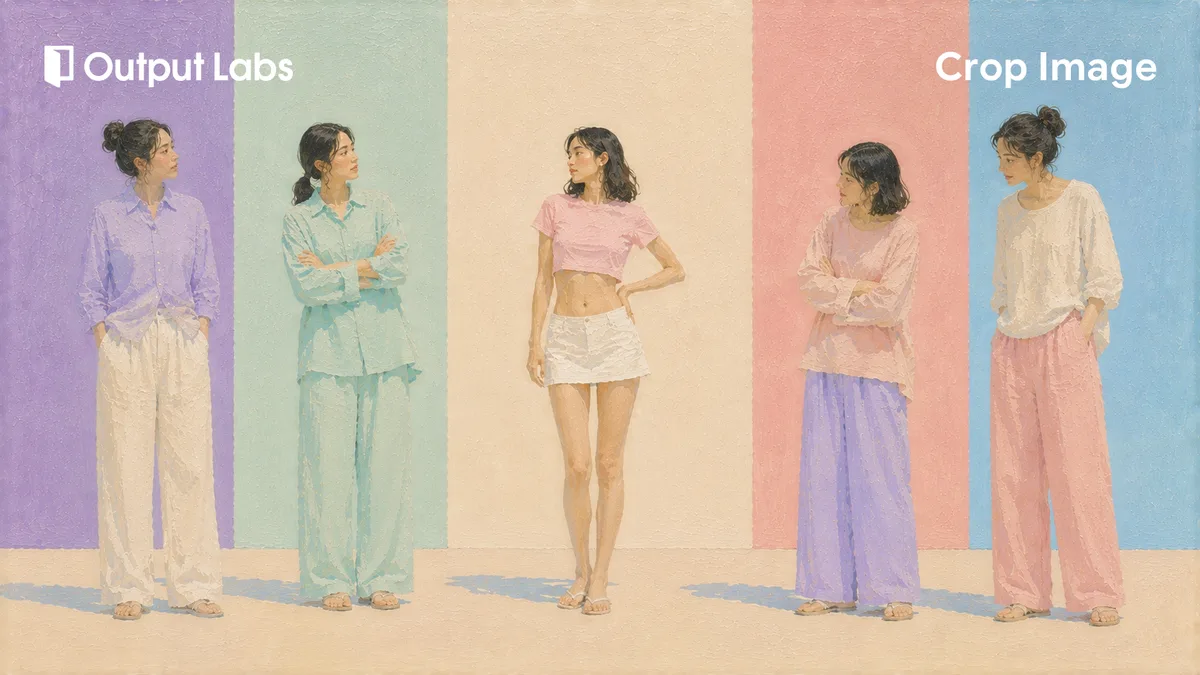
Cropping lets you pick just the part of a photo you need and cut the rest away. It's essential when a specific aspect ratio is required — a square profile photo (1:1), a YouTube thumbnail (16:9), or a vertical cover for Reels or Shorts (9:16). Rather than squeezing or stretching the image to fit, you frame exactly what you want and discard the rest.
Cropping is also the easiest way to remove distracting elements at the edges — a power line in the background, a stranger walking past, or anything else pulling the eye away from your subject. One clean crop and they're gone.
Where Platforms Crop Your Photos
Upload a photo and the platform often crops it again to fit its own layout. The Instagram feed is the classic example: even a wide shot appears in the preview trimmed to a square or a roughly 4:5 vertical frame, pushing the left and right edges out of view. That’s why a composition you framed so carefully can look quite different once it lands in the feed.
Profile pictures are usually displayed as a circle, so even a square upload loses its four corners. Keep faces, logos, and anything else important away from the edges and closer to the center. Vertical formats like Stories and Reels are different again: the account info at the top and the reply and action buttons at the bottom sit on top of your image, so text or faces placed near those areas are easily covered.
Cropping to the ratio you want before uploading means you decide where the cut lands, not the platform. Frame feed posts at 1:1 or 4:5, vertical content at 9:16, keep the important parts near the center — and the photo shows up the way you intended on any screen.
Tips for Better Crops
Choose your ratio first, then set the crop area. Pick 1:1 for a profile photo, 16:9 for a YouTube thumbnail, or 9:16 for a vertical cover — the frame locks to that ratio as soon as you select it, so you don't have to eyeball it.
If your shot is even slightly crooked, straighten it with the rotation slider before cropping. The difference between a level horizon and a tilted one is obvious once you crop in tight. For transparent images, save as PNG or WebP; for regular photos, JPG keeps the file size small.
Crop Image
Trim to the perfect ratio for profiles, thumbnails, and social posts — or just cut out the parts you don't need. Free, right in your browser.
Frequently asked questions
No. Your original stays untouched — you just download a new, cropped copy. Everything runs inside your browser, so your image is never sent to a server.
You can upload JPG, PNG, or WebP files. When saving, you can choose any of those three formats for the cropped result.
Hit "Crop again" on the result screen to reset and reposition the crop area. Your ratio preset and rotation carry over, so you can keep refining without starting from scratch.